Plan a trip
On this page
This guide takes you through a trip from start to finish with Weather and Maps: the forecast where you are going, any alerts before you leave, the route with its stops, the places along the way, and a list of the places you want to keep.
Weather and Maps run on the same sites of the 4 Network. If your site has no Weather or Maps tab, see Which sites have which services.
#Check the weather at your destination
-
Select Weather in the tab row and type a ZIP code or a city, for example
Boston. Pick the place from the suggestions.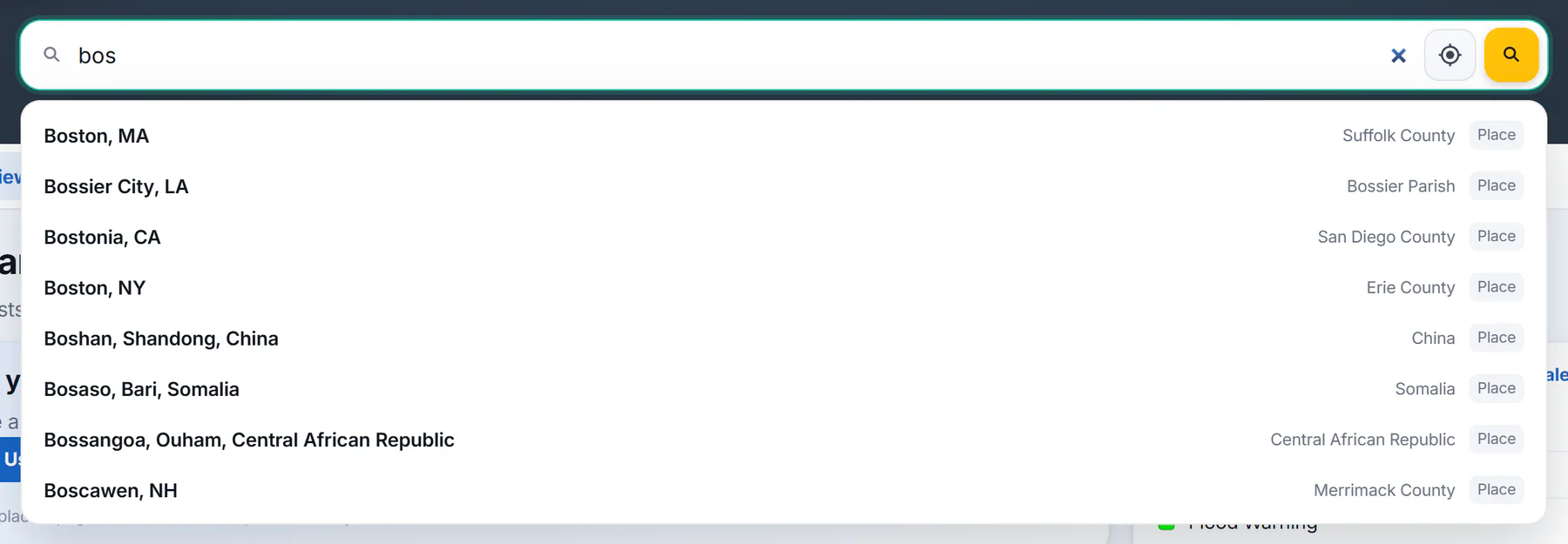
Suggestions list matching places with their state or country.
- 1Type a ZIP code, city or place
- 2A place, with its county or country
- 3Whether it is a place or a ZIP code
-
On the place's page, read Today for conditions now and the forecast in words.
-
Open 10-Day for the days of your trip, or Hourly for the day you travel.
For U.S. places, the first seven days are the National Weather Service's forecast and days 8 to 10 are an Extended outlook, a computer model's view with no forecaster's review. Places outside the United States have Today, Hourly, 10-Day and Radar pages. See Read a place's forecast page and Hourly and 10-day forecasts.
#Look for alerts before you leave
Colored bars under a place's tabs name each alert in effect there, with when it ends, and the Alerts tab shows them in full. For a whole state, open Alerts in the row of Weather pages and choose the state.
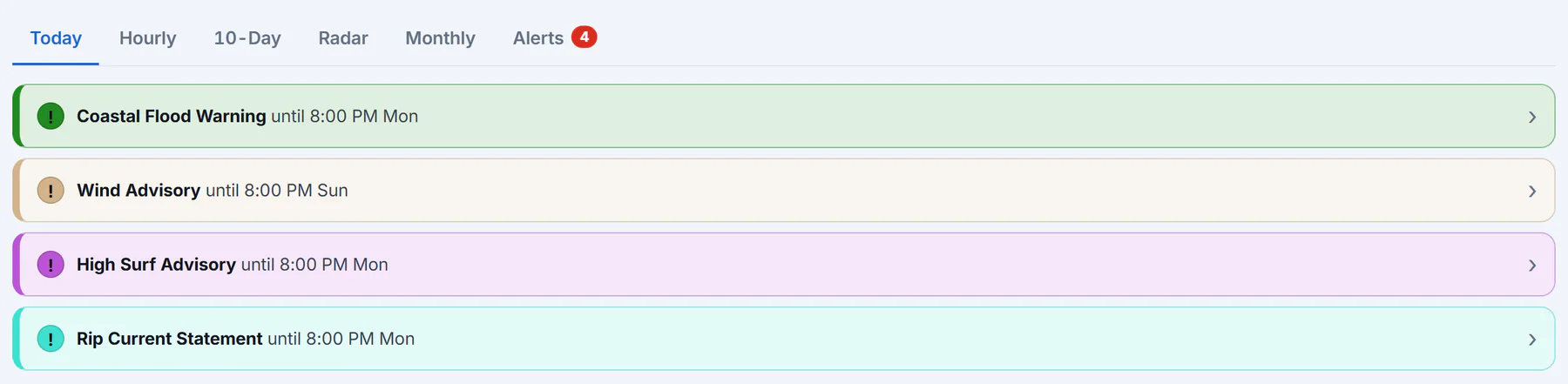
Each bar names an alert and opens it in full on the Alerts tab.
- 1An alert in effect here, with how long it lasts
- 2The Alerts tab shows how many
Alerts come from the National Weather Service and cover U.S. places only. See Weather alerts.
#Plan the route
-
Select Maps, then Directions in the ribbon under the tabs.
-
Choose Drive, Walk or Bike, then fill in the start (A) and the destination (B).
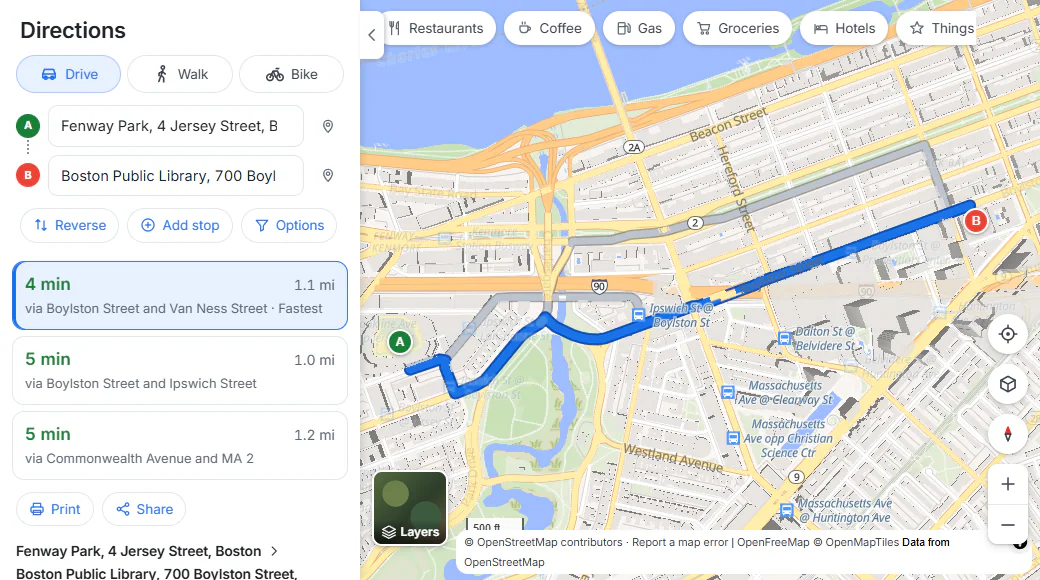
The fastest route is drawn in blue; select a grey one, or another choice in the list, to switch.
- 1How you travel: Drive, Walk or Bike
- 2The start (A) and the destination (B)
- 3Reverse, Add stop and Options
- 4Route choices: time, distance and the roads used
- 5The chosen route in blue; other choices in grey
-
Select Add stop for each place on the way. A trip can have up to ten places in all.
-
With four or more places, select Best order to reorder the stops in between for the shortest trip.
-
To skip tolls, highways or ferries, open Options and tick what to avoid.
Travel times assume normal traffic and no delays. See Get directions by car, on foot or by bike.
#Find places along the way
Type a kind of place with a place name, such as coffee near cambridge, or use a button over the map such as Gas or Hotels. Tick Open now to hide what is closed, by the place's own local time.
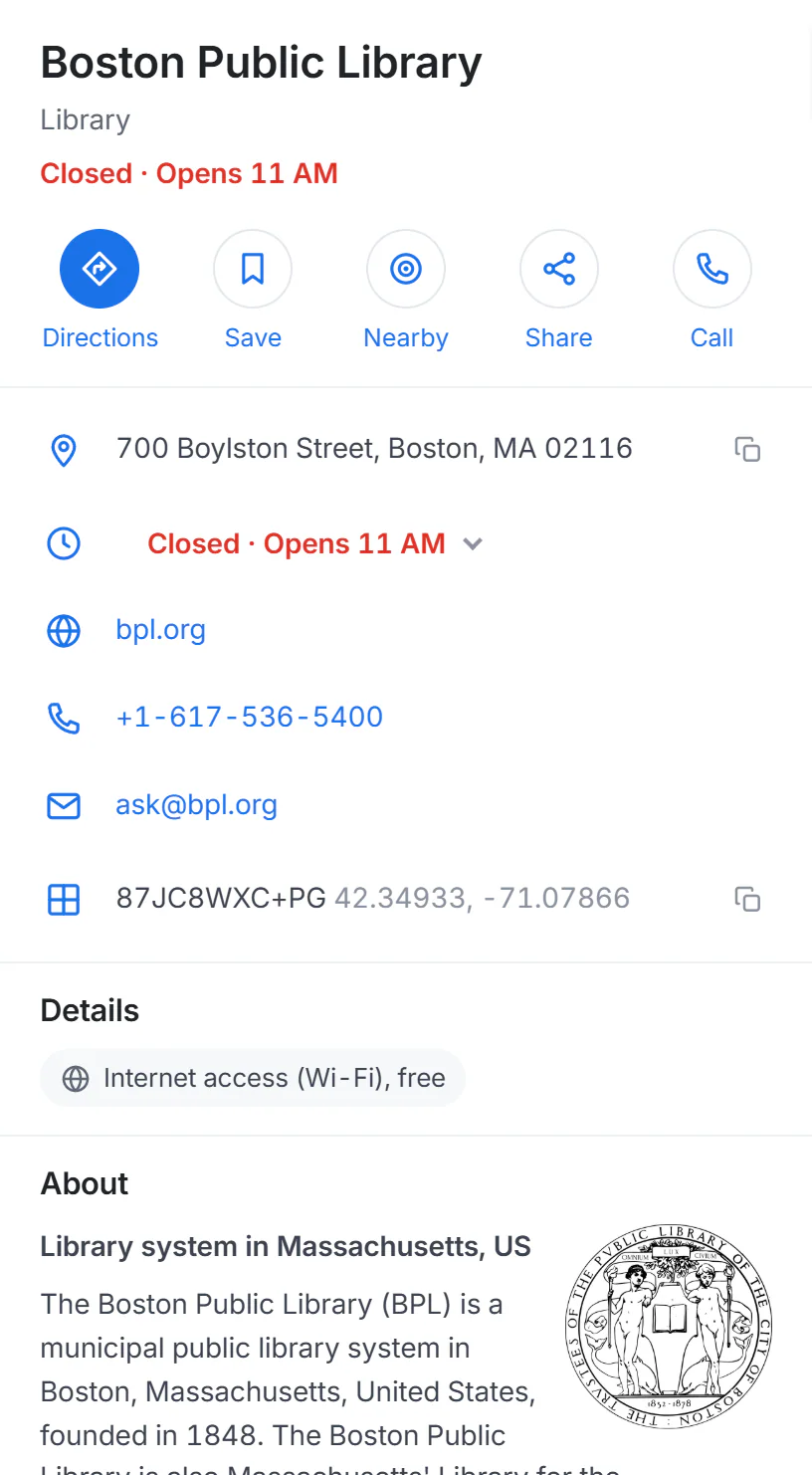
The line under a place's name says whether it is open now.
- 1Open now or Closed, and when that changes
- 2Directions, Save, Nearby, Share and Call
- 3Address, hours, website, phone and email, when the map has them
- 4Details: what the place offers
A place's page shows its hours, address, website and phone when the map has them, with Directions, Save and Call buttons. A city's page has a Weather button that opens its forecast. Opening hours come from OpenStreetMap volunteers and can be out of date, so check before a long drive. See Find places and addresses and Place pages.
#Save what you need
-
On a place's page, select Save. The first time, select Allow and save to turn on Saved preferences.
-
Open Saved in the ribbon. New places go into Starred places; use the menu beside a place to move it to Want to go, Favorites, Home or Work.
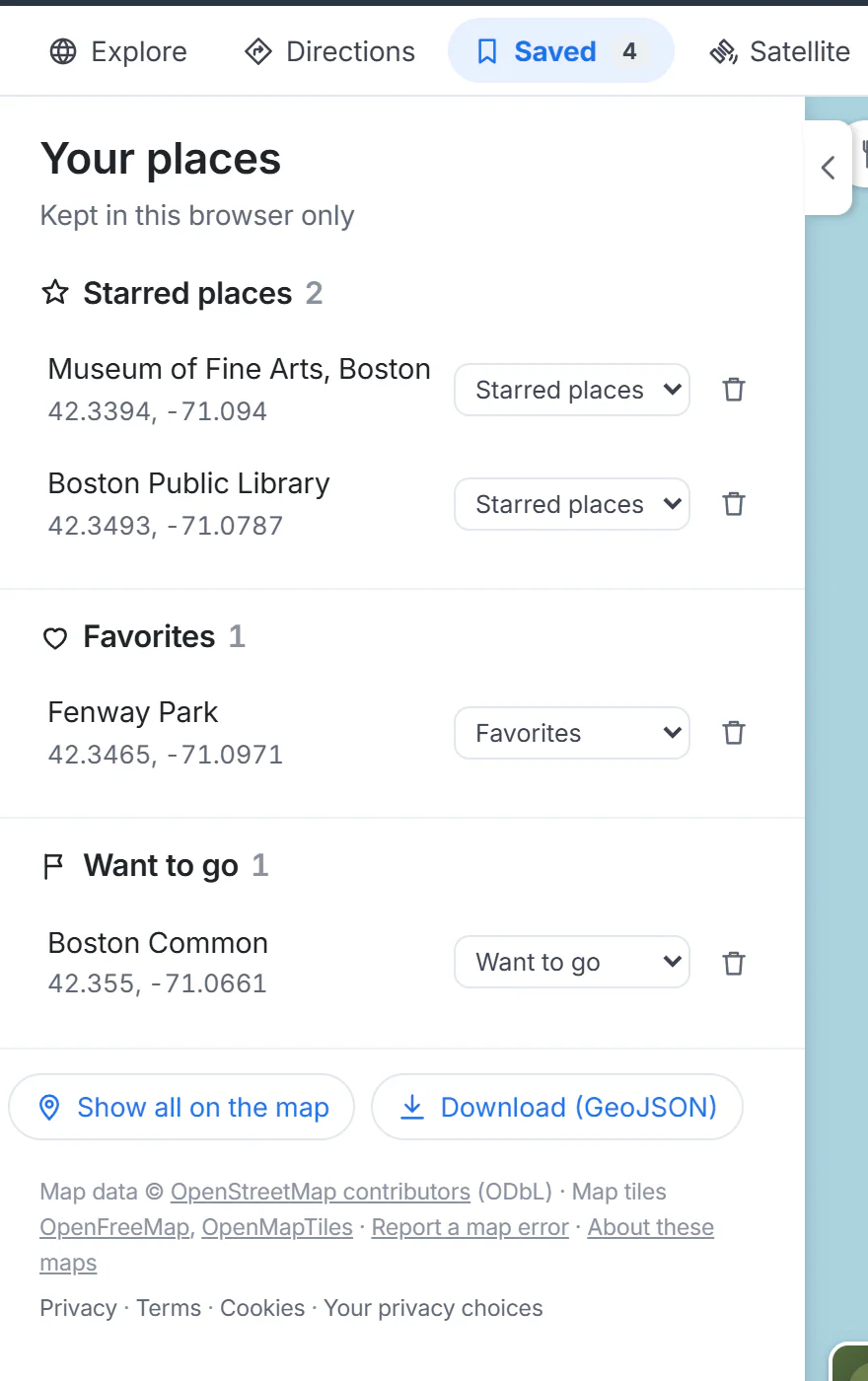
Your places, grouped in lists, with Show all on the map and Download.
- 1How many places you have saved
- 2Your places, grouped in lists
- 3Move a place to another list
- 4Remove a place
- 5Show all on the map, or download them
-
When you plan a route, select an empty box: your saved places are offered as the start or the destination.
-
In Weather, select Follow on your destination's page to see it beside your other places on My places.
To take the route with you, select Share under the steps: it copies a link with every stop and option, which opens the same route on your phone. See Save places and Follow places.
#Common questions
Can I get public transit directions?
No. Directions are for driving, walking and cycling. The Transit map shows rail and subway lines to help you plan a transit trip yourself.
Will my saved places be on my phone?
No. Each browser keeps its own list. Send yourself the route with Share, or download your places from Saved as a file.
How far ahead can I see the weather?
Ten days. The last days of the list are an outlook and are less exact than the first few.